

To effectively utilize voice commands with your smart appliances, the key lies in seamless integration and precise execution. By understanding the fundamental steps of setting up voice control and navigating through popular commands, you can effortlessly enhance your smart home experience. However, encountering occasional challenges or troubleshooting issues along the way is not uncommon. Stay tuned to discover practical solutions and optimize your interaction with smart appliances through voice commands.
Benefits of Using Voice Commands
When using voice commands, you can effortlessly control your smart appliances, enhancing convenience and efficiency in your daily tasks. By simply speaking a command, you can turn on lights, adjust the thermostat, brew coffee, or even start your robotic vacuum cleaner. This hands-free approach saves you time and effort, especially when your hands are full or occupied with other tasks.
Voice commands also offer a seamless integration between different smart devices in your home. You can create routines that trigger a series of actions with a single voice command. For example, saying ‘good morning’ could activate your coffee maker, start playing your favorite music, and adjust the lighting to help you wake up gradually.
Additionally, using voice commands with your smart appliances can improve accessibility for individuals with mobility issues or disabilities. It provides an easier way to interact with technology and perform daily tasks independently. Overall, incorporating voice commands into your smart home ecosystem can greatly enhance your quality of life.
Setting Up Voice Control
To set up voice control for your smart appliances, begin by connecting your devices to a compatible smart assistant like Alexa or Google Assistant.
First, ensure that your smart appliances are compatible with the chosen smart assistant.
Next, download the corresponding app for the smart assistant on your smartphone or tablet. Follow the app’s instructions to set up your smart assistant and link it to your home network.
Once your smart assistant is set up, use the app to discover and connect your smart appliances. This typically involves enabling a skill or action for each device. Make sure to give permission for the smart assistant to control these appliances.
After successfully connecting your smart appliances to the smart assistant, you can start using voice commands to control them. Remember to place your smart assistant in a central location for optimal voice recognition throughout your home.
Popular Voice Commands for Appliances
After setting up voice control for your smart appliances, explore a variety of popular voice commands to effortlessly manage your devices. Start your day by saying, ‘Hey, [Smart Device], turn on the coffee maker,’ and enjoy a freshly brewed cup without lifting a finger.
Need to adjust the temperature? Simply command, ‘[Smart Thermostat], set the temperature to 72 degrees.’ For those rushed mornings, instruct your smart oven with, ‘Preheat to 400 degrees,’ while you grab ingredients for breakfast.
When it’s time to wind down, request, ‘[Smart Speaker], play relaxing music,’ to create a calming ambiance. Never worry about leaving lights on again – say, ‘[Smart Bulb], turn off the lights in the living room.’
To conserve energy, try, ‘[Smart Plug], schedule the fan to turn off at 10 pm.’ With these popular voice commands, managing your smart appliances becomes intuitive and convenient.
Troubleshooting Voice Command Issues
If you encounter challenges with voice commands for your smart appliances, swiftly troubleshoot by checking your network connection and ensuring your devices are properly synced. Start by verifying that your smart appliance is connected to the internet and that your Wi-Fi signal is strong. Weak or unstable connections can lead to voice command failures. If your network is stable, make sure your smart appliance is updated with the latest software. Outdated software can cause compatibility issues with voice command functions.
Next, ensure that your smart appliance and your voice command device are synced correctly. Check that both devices are connected to the same network and that they’re within range of each other. Sometimes, simply restarting both devices can resolve syncing problems. Additionally, check if there are any obstructions or interference near the devices that could disrupt the voice command signals.
Trending Products

SHARDOR Espresso Machine 20 Bar, Professional Espresso Machine with Milk Frother and Touchscreen, Expresso Coffee Machines with Adjustable Temperature,for Cappuccino, Latte, Stainless Steel, Silver

Portable Air Conditioners, 10,000 BTU Portable AC Unit for Room up to 450 Sq. Ft, 3 in 1 Small AC Unit with 24H Timer Smart Sleep Mode, Smart Stand up Air Conditioner for Bedroom Kitchen Garage

Keurig K-Elite Single Serve K-Cup Pod Coffee Maker, with Strength and Temperature Control, Iced Coffee Capability, 8 to 12oz Brew Size, Programmable, Brushed Slate


GE 30″ Over-the-Range Microwave, 1.6 Cu. Ft., 1000 Watts, 300 CFM Hood Vent, LED Lighting, Auto Defrost, Easy Mount Install, Stainless Steel, JVM3160RFSS

Ninja Professional Blender 2.0 | Smoothie Maker, Drink Mixer, Grinder, Ice Crusher | Total Crushing Technology, Auto-iQ Program, 1200W Power, XL 72-oz. Pitcher | Dark Grey | BR201AMZ
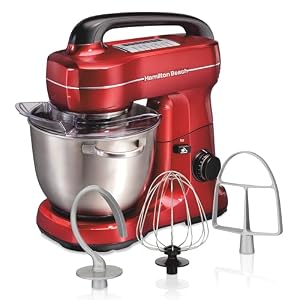
Hamilton Beach Electric Stand Mixer, 4 Quarts, Dough Hook, Flat Beater Attachments, Splash Guard, 7 Speeds with Whisk, Easy-Carry Top Handle, Red


MOOKA Air Purifiers for Home Large Room up to 1076 ft², H13 True HEPA Air Filter Cleaner, Odor Eliminator, Remove Smoke Dust Pollen Pet Dander, Night Light, B-D02L Black
